Saturday, September 12, 2015

Post Empty Status, Comment In Facebook


Updating a blank status in Facebook may sometimes help you to get more likes than a normal boring quotation. Today I am going to share you two codes which helps you to post empty status or comment in Facebook. It will works on computer and also in mobile androids.
Just follow these steps-
1. Login to your Facebook.
2. In the Status Update box type the below code and then post it.
Hold the Alt key and then type 0173 AL and click Post (ALT + 0173).

3. If the above code will not works then try the below code.
Type this code and then post it : @[0:0: ]
Share:
Read More

How To Download YouTube Playlist In Single Click Using IDM?


Downloading all videos one by one is very time consuming task. IDM does not support downloading YouTube playlists or YouTube channels in one click but by using ByTubeD you can download YouTube playlist using IDM in just a single click. To Download YouTube Playlist, follow these simple steps:

First of all download and install these three software in your computer and follow these steps.
2. IDM
3. ByTubeD

1. Now go to YouTube and Select a Playlist you want to download.

2. Right click on any one video link and then click ByTubD.


3. By TubeD will automatically start to grabbing links from YouTube playlist and opens a download window. Here you can set videos quality and video format from dropdown menu and click select all checkbox and then click start.


4. After that, you will see a table of Links with video name and video quality.


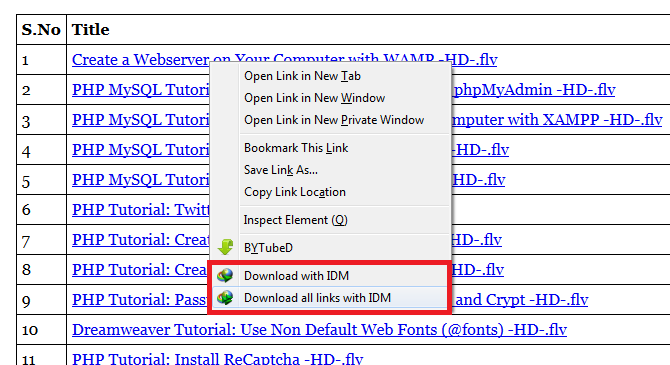
5. Now Right click on any one Video Link and Select Download All Links with IDM Option.


If you don't have this menu item in Firefox browsers, you will need to reinstallidmmzcc.xpi extension. To fix it Click here.

6. Now IDM will start to pick all the links. Select Check all tab to download all the video and then click Ok.


7. Now your download will be start within few second. 

Share:
Read More

Tuesday, August 11, 2015

Install IDM CC (Add-On) For Firefox Integration


You can use context menu in Firefox to download videos from popular sites like YouTube, MySpace TV, Google Video, etc. When your browser starts playing a video file, IDM grabs its download link. If you like the video, and you would like to save it on your computer, you should open Firefox context menu by right clicking on the web page that plays the video, and select "Download with IDM" menu item. The context menu appears when you right click on a web page in your browser.


If you don't have this menu item in Firefox or other Mozilla based browsers, you will need to reinstall idmmzcc.xpi extension. To do so, follow these steps.

1. Please make sure that you have installed the latest version of IDM.

2. Don't forget to turn on the corresponding checkbox for browsers that you use in IDM.

To do so, click Download tab in IDM and select Options.


Select the General tab and then turn on the corresponding checkbox for browsers.


3. Click File, select Open File.. in the main menu of your browser and openidmmzcc.xpi file from IDM root folder :


C:\Program Files(x86)\Internet Download Manager\ idmmzcc.xpi


4. When you open this .xpi file you will see a “software install” dialog box. ClickInstall Now to install.


5. After that go to Tools and select Add-ons. In the Add-ons manager, click Enableto enable the Internet Download Manager Integration Module.


6. Now close and restart your browser, you can see the Download with IDM option when you right click on a video.

Share:
Read More

Tuesday, July 14, 2015

How To Enable/Disable Startup Sound In Windows ?

By default, Windows 7 plays certain sounds when events occur. When you log on to Windows 7, it plays the Windows Logon sound. When your computer has to load a 500KB media file to play, it slows things down. To disable the logon sound, follow these steps:

1. Click the Start button and then Control Panel.

2. Click Hardware & Sound and click Change System Soundslisted under Sound.


3. In the Program Events box, scroll through the list and select Windows Logon and remove the assigned sound by setting it to None in the Sounds drop down list.


4. Below the Program Events list, remove the check next to Play Windows
Startup sound. 

5. Click OK and you are finished.
Share:
Read More

Tuesday, July 7, 2015

Security Zones: Set Up Trusted and Restricted Web Sites in Microsoft Internet Explorer


To keep your computer most secure and working at its best, you need to keep it free from malware and other damaging software that can be inadvertently downloaded. You can set up Windows to protect your computer by preventing downloads from sites that you know are likely to contain virus or other software that could damage your computer.

Set Up Trusted Websites

Setting Up Trusted Websites allow the Web site, that you want to allow your computer to access. To set up Trusted Websites, follow these steps.

1. Open your Internet Explorer browser, Choose Tools and then click Internet Options.


2. In the Internet Options dialog box, select the Security tab and Click the Trusted Sites icon and then click the Sites button.


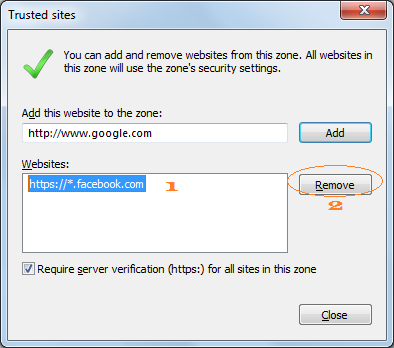
3. In the resulting Trusted Sites dialog box, enter a URL in the Add this website to the zone text box for a Web site you want to allow your computer to access and Click Add to add the site to the list of Web sites.


4. If the Require Server Verification (https:) for all Sites in this Zone check box is selected in the Trusted Sites dialog box, any Trusted site you add must use the https prefix, which indicates that the site has a secure connection.


5. To remove a site, select the site in the website dialog box and click Remove.


6. Repeat Step-3 to add more sites. When you’re done, click Close and then click OK to close the dialog boxes.

Set Up Restricted Websites

Setting Up Restricted Web Sites block the Web site that you don’t want your computer to access. To set up Restricted Websites, follow these steps.

1. Open your Internet Explorer browser, Choose Tools and then click Internet Options.

2. In the Internet Options dialog box, select the Security tab and Click the Restricted Sites icon and then click the Sites button.


3. In the resulting Restricted Sites dialog box, enter a URL in the Add this website to the zone text box for a Web site you don’t want your computer to access and Click Add to add the site to the list of Web sites.


4. To remove a site, select the site in the website dialog box and click Remove.


5. Repeat Step-3 to add more sites. When you’re done, click Close and then click OK to close the dialog boxes.

Establish a Privacy Setting

You can establish a privacy setting on the Privacy tab of the Internet Options dialog box to control which sites are allowed to download cookies to your computer.

1. In the Internet Options dialog box, select the Privacy tab and then click the Sites button.


2. In the resulting Privacy Action dialog box, enter a URL in the Address of the website text box and Click Block or Allow to control which sites are allowed to download cookiesto your computer.


4. To remove a site, click on that site in the managed website dialog box and clickRemove.
Share:
Read More